When configuring dynamic text or dynamic images, you can enable dynamic graphic properties from the Properties panel. The settings in this panel allow you to control the content of the text or image and dynamically update its appearance based on some selected data (either fixed values or using a dynamic formula). For example, you can increase the size of some dynamic text automatically based on a current value in the underlying data or change the color of an image when a value drops below a certain value.
Dynamic Properties
To make an image or some text "dynamic," you can configure at least one of its dynamic properties in its Properties panel (yellow highlight below):
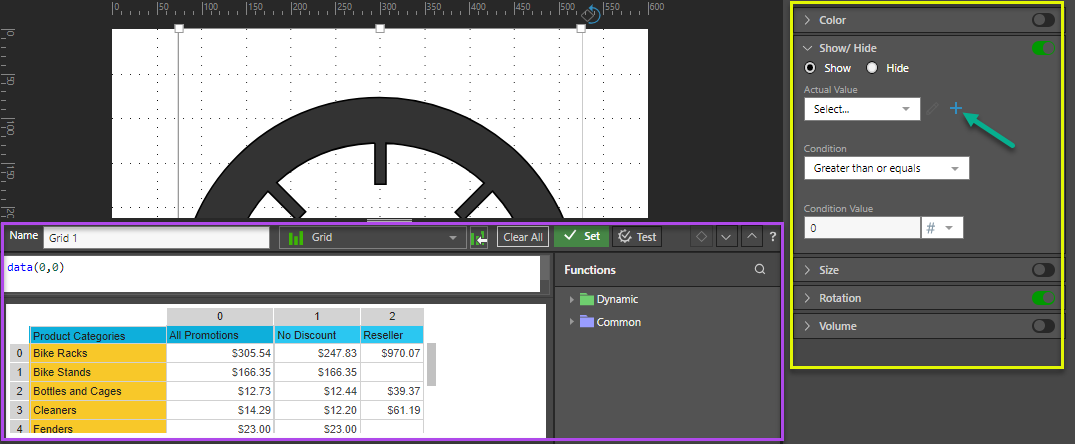
Note: This example shows the Properties panel used to configure Dynamic Images, with an image selected on the canvas. The available Properties are different for selected text boxes and images.
Common Fields
Enable Properties
Each required Property is enabled by selecting its toggle "switch."
Actual Value
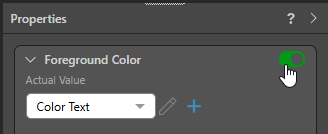
To set the Actual Value for a Property, you can either:
- Select an existing function from the dropdown list.
- Click the + icon to open the Dynamic Text Editor and create a new Actual Value function.
Tip: You can also click Edit alongside an existing function to update its details.
Other Values
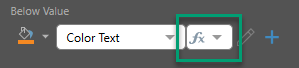
The other values, including Condition, Minimum, or Maximum Value, can be driven by a given static value or by a dynamic formula. When you select Formula as an option (green highlight below), the formula is defined in the Dynamic Text Editor:
Background and Foreground Color
Available for dynamic text variables only:
- Below Value: Set the value below which the text (foreground or background, depending on your selection) will show a specified color.
- Between Value: Set the color that should be displayed when the value falls between the below and above values.
- Above Value: Set the value above which the text will show a specified color.
Color
Available for dynamic stock and vector images only:
- Swap Color: Set the color for the outline or borders.
- Colors Transition Mode: Define whether color transitions should be continuous (transitioning smoothly between above and below values) or discrete (transitioning in discrete steps).
- Below Value: Set the value below which the image will show a specified color.
- Between Value: Set the color that should be displayed when the value falls between the below and above values.
- Above Value: Set the value above which the image will show a specified color.
Rotation
Available for dynamic images (including stock, vector, and raster images) and text:
- Rotation Direction: Set the direction of the rotation.
- Minimum Value: Choose the minimum value that will be used in the rotation range.
- Minimum Angle: Set the smallest angle that the asset should be rotated when the minimum is reached.
- Maximum Value: Choose the maximum value that will that will be used in the rotation range.
- Maximum Angle: Set the largest angle that the asset should be rotated when the maximum is reached.
Show/ Hide
Available for dynamic images (including stock, vector, and raster images) and text:
- Show/Hide: Determine whether the image should be shown or hidden based on the given condition.
- Condition: Set the condition according to which the image will be shown or hidden.
- Condition Value: Enter the condition value, against which the actual value will be compared.
Size
Available for dynamic images (including stock, vector, and raster images) and text:
- Minimum Value: Set the minimum value that will drive the range against which the actual will be compared.
- Minimum Size: Enter the minimum size that will be used in the size range.
- Maximum Value: Set the maximum value that will drive the range against which the actual will be compared.
- Maximum Size: Enter the maximum size that will be used in the size range.
Text
Where dynamic text is added to your illustration, the name of your Function (supplied at the top of the Dynamic Text panel) is selected as the Actual Value in the Text field Properties panel (brown highlight). For more information, see Dynamic Text in Illustrate.
Volume
Available for dynamic stock and vector images only:
- Minimum Value: Set the minimum value that will drive the range against which the actual will be compared.
- Maximum Value: Set the maximum value that will drive the range against which the actual will be compared.
- Swap Color: Set the color for the outline/ borders.
- Color: Choose the color that will represent the area of coverage, or volume. This property may be disabled if the color property itself is in use.
- Counter Color: Set the counter-color that will represent the area of non-coverage. This property may be disabled if the color property itself is in use.
- Minimum Volume: Set the minimum volume amount. This is useful when the minimum volume should not be shown as nothing, but instead a small percentage of the range.
- Volume Direction: Select the direction from which the volume color should be applied.
Related information
Static vs Formula Values
For each dynamic property, the Actual Value is selected through the Dynamic Text Editor. The Condition, Minimum, and Maximum values, however, may compare that value with either a static value or a dynamic formula. Where the comparison uses a formula, the formula is defined in the Dynamic Text Editor.
Building Dynamic Illustrations
- Click here to learn about Building Dynamic Text.
- Click here to learn about Building Dynamic Images.